
Cricut is a brand that offers a variety of crafting machines. These tools can cut many different materials, including paper, fabric, vinyl, leather, wood, etc. Also, they can write, score, and emboss on various materials. These machines operate at different speeds, and each model can be accessed through the Cricut Design Space App. This software allows you to create a design and send it to your machine for cutting. The Cricut app is available on computers as well as phones.
In this guide, we will compare Cricut machines tohelp you decide which is right for you with their features, capabilities, designs, etc. So, without any further delay, let’s get started with this blog.
- Cricut Venture
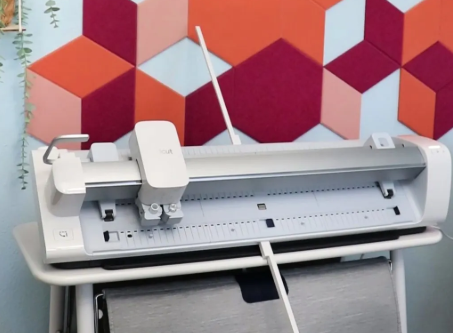
Cricut Venture is one of the largest cutting machines in the Cricut lineup. Its speed, size, and power set this machine apart. Its high speed makes it ideal for cutting large and small projects in different sizes. Like Explore models, this machine can cut, write, draw, score, foil, etc. There are large smart materials compatible with this machine, which you can use to cut large designs for your projects. It comes with a docking stand with wheels and a roll holder, which is optional. This cutting machine is perfect for small businesses that must create large projects in bulk amounts.
- Cricut Joy
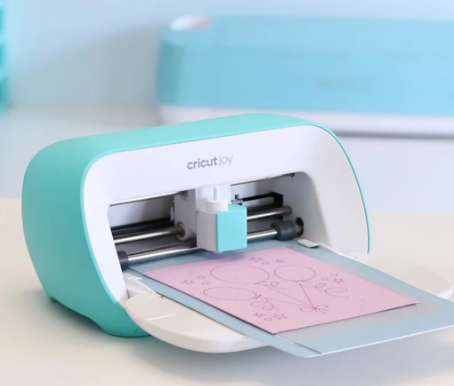
The Cricut Joy machine is the smallest among other cutting tools. It was designed to provide a convenient alternative for users and crafters who want to craft occasionally. Its cutting capability is limited to cutting more than 50+ materials, and it cannot cut thicker materials. To use this machine, you must purchase Cricut Joy pens and blades specifically, as they are not interchangeable. It has no Load and Unload buttons like the other crafting machines. So, instead of pressing the ‘Go button‘ on the screen, you need to control it through the Cricut Design Space app.
This machine has a card mat feature, which is great if you plan to use it for card making, as it has a special card-cutting mat. It can also be used for small projects, such as labels, coasters, bookmarks, stickers, etc.
- Cricut Explore Air 2 and Explore 3
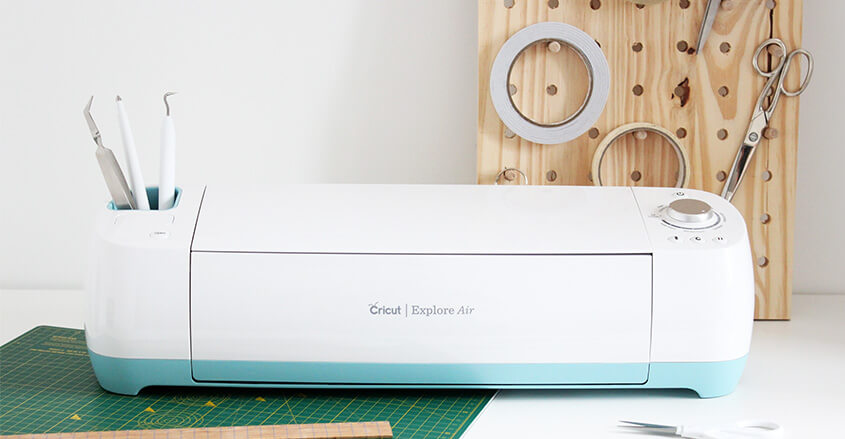
There are two models of the Explore machine, and we will read about both here. So, let’s start with the first machine, ‘Cricut Explore Air 2‘, which can cut 100+ materials. It can be used for cutting, scoring, and writing and has tool storage. The machine works with the Print Then Cut feature, which you can use to cut out and create your projects. It has a dial on the machine to choose your cutting material, which should be cut on the mat. The Explore 3 is the newest model, and it has removed the dial feature. It is faster than its previous model and can cut smart materials without a mat. Smart materials are super easy to use and help you to create your project quickly.
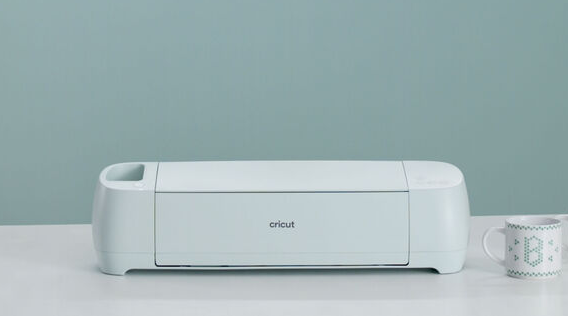
Crafters who want to work with smart materials and make quick projects with wide materials can use this machine. Whether you are a DIY enthusiast or a crafter, having the right machine is important for your project. To decide, compare Cricut machines and choose which is ideal for your crafts.
- Cricut Maker 3
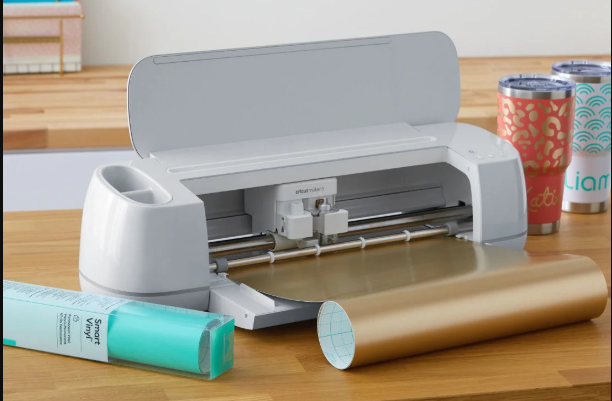
This is the newest and dream machine for all crafters. It can cut more than 300 materials and has 13 tools for various projects. With these new capabilities, you can cut wood, leather, and fabric. It uses a quick swap system to help you easily switch to different blades to cut your various materials. If you want to upgrade from the older model to the newest one, then this machine is perfect for you.
As we read above, the Cricut Maker 3 machine comes with 13 different blades, and each blade can cut different materials. Here is the list of it:
- Deep-point blade: Works with thicker materials.
- Knife blade: Ideal for leather and wood.
- Rotary blade: This is used to cut most types of fabric.
- Fine embossing tip: It is great for cutting cardstock, kraft, and chipboard paper.
- Wavy blade: Using this blade, you can cut and make pretty edges on cardstock and vinyl.
- Engraving tip: You can engrave on metal with this.
Final Words
If you are considering buying your first crafting machine, read this guide, and you will find your answer. Above, we compare Cricut machines, which will help you identify which is right for you. If you want to make large-scale projects like wall decals, you can choose the Cricut Venture machine. Cricut Joy is a good choice for people who craft occasionally. The Maker 3 is a versatile machine with 10 times more force than other machines, allowing it to cut more materials. Explore 3 is the perfect option for a beginner crafter.
Now, the choice is yours which machine you will buy. It depends on your budget and the projects you want to make with it.
Frequently Asked Questions (FAQs)
What Is the Difference Between all the Cricut Machines?
The main difference between all the machines is the material they can cut. Cricut Joy and Joy Xtra can cut more than 50 materials, and Explore 3 and Venture can cut over 100 materials. Cricut Maker 3 has 10 times more force than other machines, so it can cut over 300 materials. Now, it depends on you with the help of which material you will be making your design and which one you will choose to cut your design.
Which One Is the Latest Cricut Machine?
Cricut Maker 3 and Explore 3 machines were released in 2021. They are the latest and most versatile cutting machines. They are twice as fast as their previous models, with a sleek design and enhanced cutting capabilities. Maker 3 can cut over 300 materials and engrave, score, and use smart materials without the mat.
How to Setup Cricut Machine on a Mac?
You can proceed with the following steps to setup your machine on a Mac:
- Open your web browser and type design.cricut.com/setup.
- Click on Download and then wait for the download process to complete.
- Now, open the downloaded file, then drag the Cricut Design Space icon into the Applications folder. Double-click on the Cricut Design Space file and click Open.
- After that, click Product Setup and select Smart Cutting Machine.
- Select your Cricut machine and fill in the form to Create a Cricut ID. If you already have an account, then sign in directly.
How to Download Cricut Design Space on a Windows PC?
To setup the Cricut machine, you will need to download and install the Cricut Design Space on your PC. Here’s how to download it:
- Open the browser and navigate to design.circut.com/setup.
- After that, you will see a checkbox. Click on it to enable the Download button.
- When the download is done, you have to go to your Downloads folder.
- If asked, click on the ‘Yes button’ to trust the application source.
- In the last step, installation will begin.