
When I first got my Cricut machine, I had no idea where to begin. But one thing was clear: whether you are making home decor, personalized gifts, DIY projects, or products for your home-based business, the Cricut cutting machine can be your perfect crafting partner.
If you are still feeling confused and wondering what to make with your Cricut machine, don’t worry – you’re not alone. That’s exactly why I have created this fun and beginner-friendly guide to help you get started with confidence.
Here, I will share 8 profitable things to make with Cricut, perfect for all kinds of crafters. From holiday decor and birthday decorations to special occasion designs, iron-on crafts, scrapbooking, card-making, vinyl projects, and more, there’s something for everyone. You can even make multiple copies of your creations to sell or gift.
1. Labels

To create labels with a Cricut machine: Open Design Space and start a new project. Choose a label design or create your own using text, images, and shapes. You can also use pre-designed label shapes accessed through the Image library or create your own custom labels. Adjust the size and placement of your elements on the canvas. Click Make It once you’re done designing.
Load your chosen material (eg, vinyl, sticker paper) onto a cutting mat or use Smart Materials for the Cricut Joy. After cutting, unload the material. Weed out the excess vinyl around and inside the label design. For vinyl labels, apply transfer tape to the front of your design, then transfer it to your desired surface and enjoy.
2. Keychains

Making keychains is one of the easiest things to make with Cricut. It can be created with a Cricut machine using materials such as vinyl, faux leather, or acrylic. First, decide what material you will use, and then proceed with the design process in Design Space. Use the Text and Shapes tools where required, or you can also upload your own image. Use a pre-made template in Design Space to match your keychain shape or size. If using vinyl, cut it to the appropriate size for your design. For faux leather or acrylic, ensure your material is clean and ready to be cut.
In Design Space, select the correct material type and blade depth for your chosen material. Next, load your material onto the cutting mat. Remove excess vinyl from around your design. Use transfer tape to carefully apply the cut vinyl design to your acrylic keychain blank, ensuring it’s smooth and bubble-free. Add jump rings, keyrings, tassels, or other hardware to complete your keychain.
3. Stickers
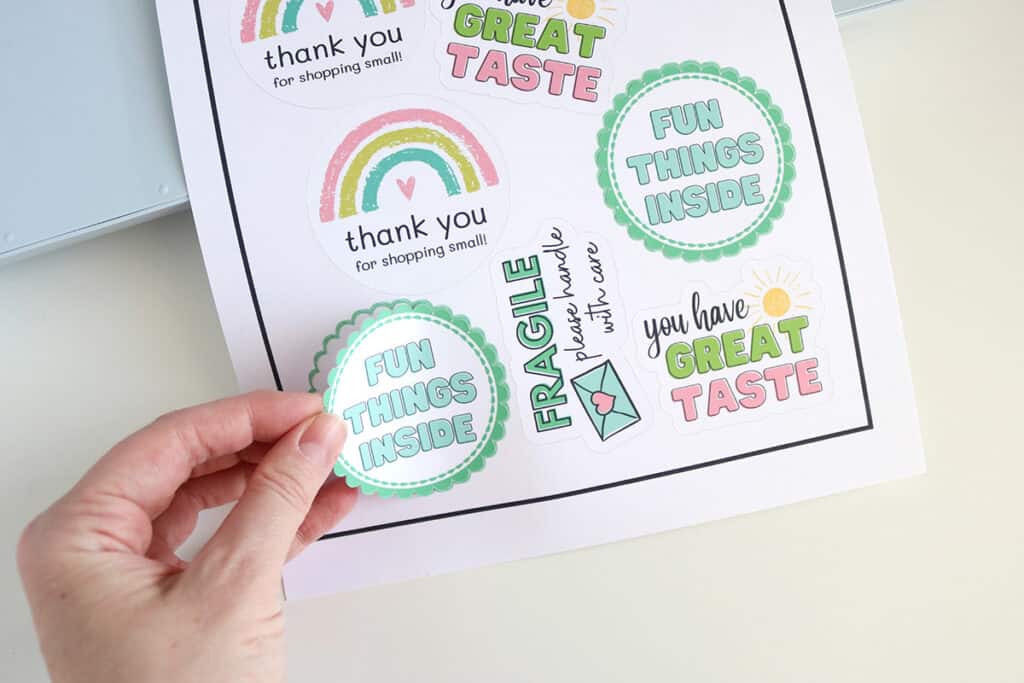
To make stickers with a Cricut machine, you’ll use the ‘Print Then Cut feature‘, which involves printing your design on sticker paper and then having the Cricut cut it out. Design your stickers using text, images, shapes, and other elements within ‘Cricut Design Space‘. Select your design and use the Create Sticker feature to streamline the process.
Now, choose between Die Cut (cuts around the design) and Kiss Cut (cuts along with the top layer, leaving the backing intact) options. Customize the border thickness and color if desired. Select Print within Cricut Design Space to open your printer’s dialog box. Load your sticker material into your printer and print the design.
4. Mugs
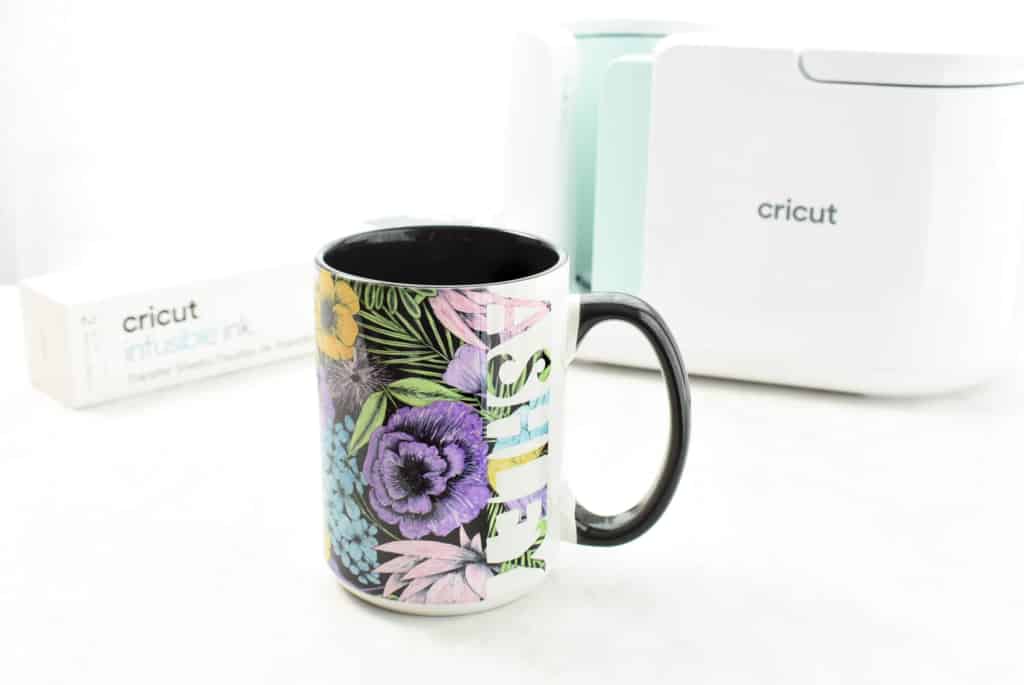
To create mugs with a Cricut machine, you’ll need a Cricut Mug Press, Infusible Ink transfer sheets or infusible Ink markers, a sublimation-coated mug, and heat-resistant tape. First, design your image in Cricut Design Space, then cut it out using the machine on Infusible Ink transfer sheets.
Now, carefully remove the excess material from around your design, leaving only the image you want to transfer. Clean your mug thoroughly with rubbing alcohol to remove any dust or oils. Attach the design to the mug and secure it with heat-resistant tape, and use the Mug Press to transfer the design.
5. Cards

To create personalized cards with a Cricut machine for special occasions, you can utilize the card mats, pre-cut cards, and the ‘Cricut Design Space Software‘ for various designs and customizations.
Designing in Cricut Design Space gives you access to thousands of ready-to-make card projects, or you can start with a blank canvas. Modify existing designs, change fonts, add images, and personalize the text to suit your needs. Securely place your card on the mat for cutting and scoring. Use foil transfer sheets to add a metallic effect to your designs.
Tip: Start with basic card designs and gradually explore more complex techniques.
6. Vinyl Decals
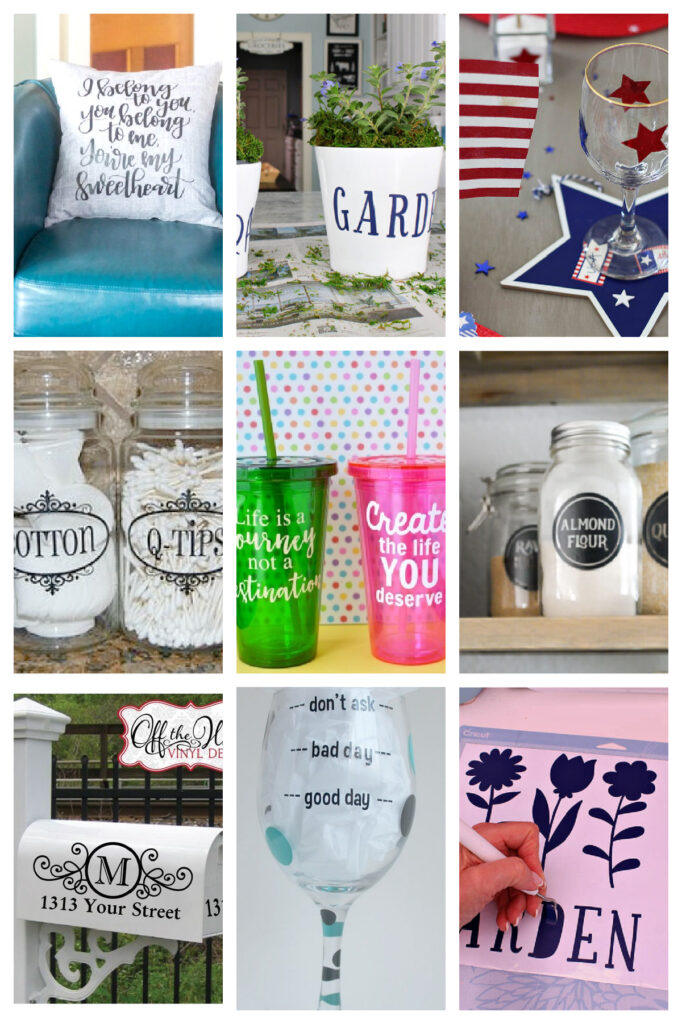
Making decals is one of the most trendy things to make with Cricut. Decals can be created for many occasions, including personalizing gifts, decorating for parties, or adding a custom touch to items such as water bottles, notebooks, or even cars. To make vinyl decals with a cutting machine, you’ll need your Cricut machine, vinyl, transfer tape, and a weeding tool.
Design your decal in Cricut Design Space, load the vinyl, cut it out, weed out the excess vinyl from your design, and then use transfer tape to apply the decal to your desired surface. Choose the right type of vinyl for your project.
7. Jewelry

Cricut is also great for making custom jewelry like earrings, necklaces, bracelets, and personalized pendants. These can be given as gifts for birthdays, holidays (like Valentine’s Day), anniversaries, or as unique personalized favors for events.
Use your cutting machine to cut out various shapes from leather or faux leather and attach hooks or other findings to create unique earrings. Cricut’s engraving tool (for Maker machines) allows you to personalize metal or acrylic blanks with names, dates, or special messages.
8. Banners

You can create a banner for special occasions, such as birthdays, baby showers, holidays, graduations, or any other event where you want to add a personalized touch. To create a banner for special occasions, select a banner shape (such as triangle, square, or circle) or upload an image.
Add text, images, or patterns to your banner pieces. Size your banner elements to fit your desired banner pieces. Duplicate the banner pieces to spell out your message. Select your material (cardstock, felt, fabric) and load it into your machine. Adjust the blade depth and cutting pressure based on your material. And that’s it, your banner is ready.
Frequently Asked Questions (FAQs)
Can I use Cricut Design Space to make a logo?
Yes, you can use ‘Cricut Design Space‘ to create a logo. It offers a variety of shapes, fonts, and editing tools to create basic logos. It’s designed to work seamlessly with Cricut cutting machines, allowing you to directly cut out your logo designs. For logos that include images or complex designs, you can use the ‘Print Then Cut feature‘ to print the design on your home printer and then have the Cricut machine cut it out.
Can I use my own design in Cricut App?
Yes, you can use your own designs in the Cricut app. Design Space allows you to upload various image formats, including JPG and PNG. You can also use external design programs, such as Inkscape or Canva, to create your designs and import them into Cricut Design Space.
Select the Upload button on the left side, then browse to locate your image file. Select whether you want to upload the image as a cut image or a Print Then Cut image. Save the uploaded image, and it will be available to use in your projects.
Can Cricut print tattoos?
Yes, Cricut machines can create temporary tattoos. This is achieved using printable tattoo paper and the Print Then Cut feature of the Cricut software. Simply create or upload your tattoo design in Cricut Design Space. After that, print the design onto printable tattoo paper using an inkjet printer. Place the printed tattoo paper on a mat and use the ‘Print Then Cut feature‘ to cut out the design. Now, apply it to the skin using a wet cloth.